Edit video in this video editor on a local timeline
By Reel Quill editorial team Current release, published August 1, 2026
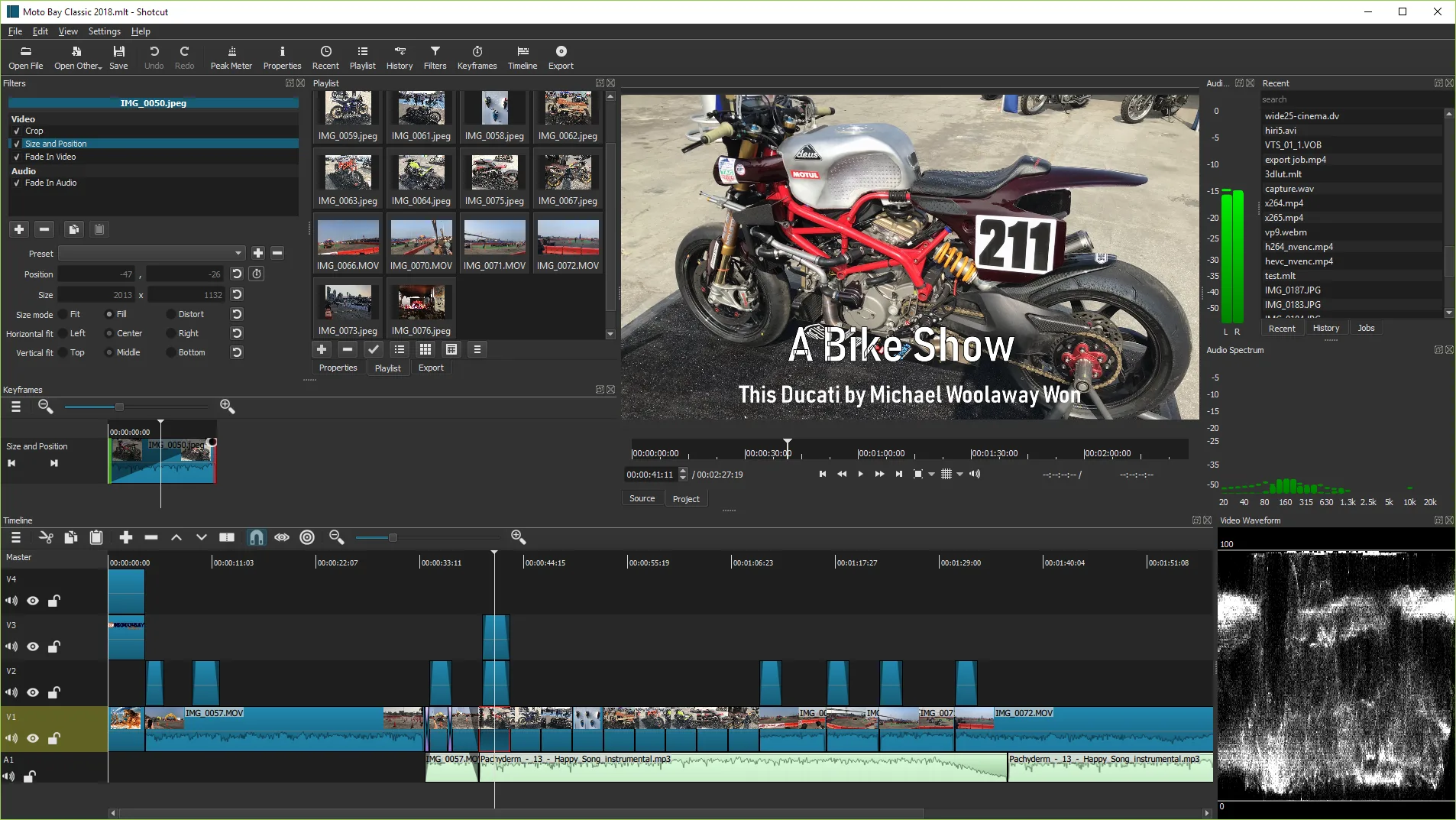
After the video editor installs, a first edit should stay small: one clip, a few cuts, one export. This page walks that path inside Shotcut.
Open media
Use File → Open or drag files into the Playlist. Prefer a short clip you can discard while you learn.
Build a tiny timeline
Drag the clip to the Timeline. Drag edges to trim. Split with S or the timeline toolbar. Add a second track only after the first cut plays cleanly.
Filters and titles
Open Filters for colour, audio, or text. Apply one filter, preview, then export. Stacking five untested filters on the first hour hides whether the install works.
Export
Open Export, pick a simple MP4-oriented preset, choose a new destination name, and Export File. Confirm playback in a separate player.
More: export MP4, first run, installed checklist.
Practical checks before you move on
Confirm the GitHub repository is mltframework/shotcut and the winget id is Meltytech.Shotcut before you image a lab. The same release tag lists Windows x64 exe and zip, Windows ARM builds, macOS dmgs, and Linux AppImage or archive files. Pick the asset that matches the PC architecture in front of you.
A video editor install is complete only after a proof export plays in a separate player. Keep the built-in Windows trim tools available during the first week if you are switching habits. Document the update door on the machine ticket so the next bump does not mix portable zip and winget copies.
SmartScreen may warn on brand-new signatures. Use More info and confirm Meltytech when listed. Cancel and return to GitHub Releases if the publisher string looks unrelated. Checksums on the release tag help when a desk requires hash verification.
Where to go next
Windows install steps live on the install guide. Safe download notes explain portal risks. Releases maps filenames. GitHub explains source and licence. The installed checklist covers the first hour. Troubleshooting covers SmartScreen, architecture mismatches, and failed exports.
This video editor path is GPLv3 Shotcut from Meltytech. Reel Quill only documents install doors. Product bugs belong on the upstream issue tracker. Prefer one door per machine and one proof export after every update.
Classroom images should pin winget Meltytech.Shotcut or the GitHub exe pattern beside the OS version. Travel PCs without admin rights can use the portable zip with manual updates. Family PCs usually prefer the normal exe or winget so Start menu search finds Shotcut.
Extra install notes
Keep one install door per machine for this video editor path. Prefer GitHub shotcut-win64-*.exe or winget Meltytech.Shotcut on Windows x64. Document the door on the machine ticket so the next update does not mix portable zip and winget copies.
Finish a proof export after every install or upgrade. A video editor that opens but cannot export is not ready for class or client work. Keep masters read-only while you learn Export presets.
SmartScreen may warn on brand-new signatures. Use More info and confirm Meltytech when listed. Return to GitHub Releases if the publisher string looks unrelated. Checksums on the release tag help when a desk requires hash verification.
macOS and Linux doors stay documented in their install guides even though the Install panel on the home page stays Windows-primary. Brew cask shotcut, Flatpak org.shotcut.Shotcut, and Snap shotcut are verified when those desks matter.
Lab and desk habits
Write the video editor install door on the machine ticket beside the Windows build. Prefer GitHub shotcut-win64-*.exe or winget Meltytech.Shotcut on x64 desks. After every reimage, run one proof export before you call the station ready.
Travel laptops without admin rights can use the portable zip with manual updates. Family PCs usually prefer the normal exe or winget so Start menu search finds Shotcut. Keep built-in trim tools available for a week when you are switching habits.
SmartScreen may warn on brand-new signatures. Use More info and confirm Meltytech when listed. Return to GitHub Releases if the publisher string looks unrelated. Checksums on the release tag help when a desk requires hash verification.
macOS and Linux doors stay honest in their install guides even though the Install panel on the home page stays Windows-primary. Brew cask shotcut, Flatpak org.shotcut.Shotcut, and Snap shotcut are verified when those desks matter.
A video editor install is complete only after a throwaway export plays in a separate player. Keep masters read-only while you learn Export presets. Save a .mlt project when you expect to reopen the cut later.